Pong
 Pong rendering a classic two-player court with AI opponent, dashed center net, and dot-matrix score display.
Overview
Pong is a fully playable recreation of the 1972 arcade classic, synthesized entirely in hardware on Videomancer's FPGA. A ball bounces between two paddles on a bordered court, with scores displayed as dot-matrix digits at the top of the screen. Player 1 controls their paddle with a knob; Player 2 can be an AI opponent or a second human player using the fader.
The game runs its physics at the video frame rate, updating ball position and paddle tracking once per vsync. The ball's bounce angle depends on where it strikes the paddle: center hits return flat, edge hits produce steep angles. Scores count up to 9, then reset. A brief screen flash punctuates each goal.
Because Pong is a synthesis program, it generates imagery from scratch rather than processing an input signal. The Mix fader blends the synthesized court with whatever video is passing through, letting you overlay a live game on top of any other video source.
Pong is a great way to test your Videomancer's output chain. If the court renders cleanly and the ball moves smoothly, your sync and video path are healthy.
What's In a Name?
The name needs no explanation. Pong is the primordial video game: a table-tennis simulation so iconic that it became synonymous with the concept of electronic gaming itself. The original 1972 Atari coin-op was built entirely from discrete TTL logic, with no CPU or software. Videomancer's version follows that same spirit: the game logic runs as a hardware state machine inside the FPGA, with no processor involved.
Quick Start
- With all controls at their defaults, a game is already in progress. Watch the ball bounce between two paddles, with the AI controlling the right-side player. The score digits at the top of the screen track each player's points.
- Turn P1 Pos (Knob 3) to move the left paddle up and down. Try to intercept the ball before it passes your paddle.
- Turn Ball Spd (Knob 1) clockwise to increase the ball's speed. The game gets harder quickly.
- Flip P2 Mode (Switch 7) to Manual and hand the Mix fader to a friend: the fader now controls Player 2's paddle position. You have a two-player game.
Parameters
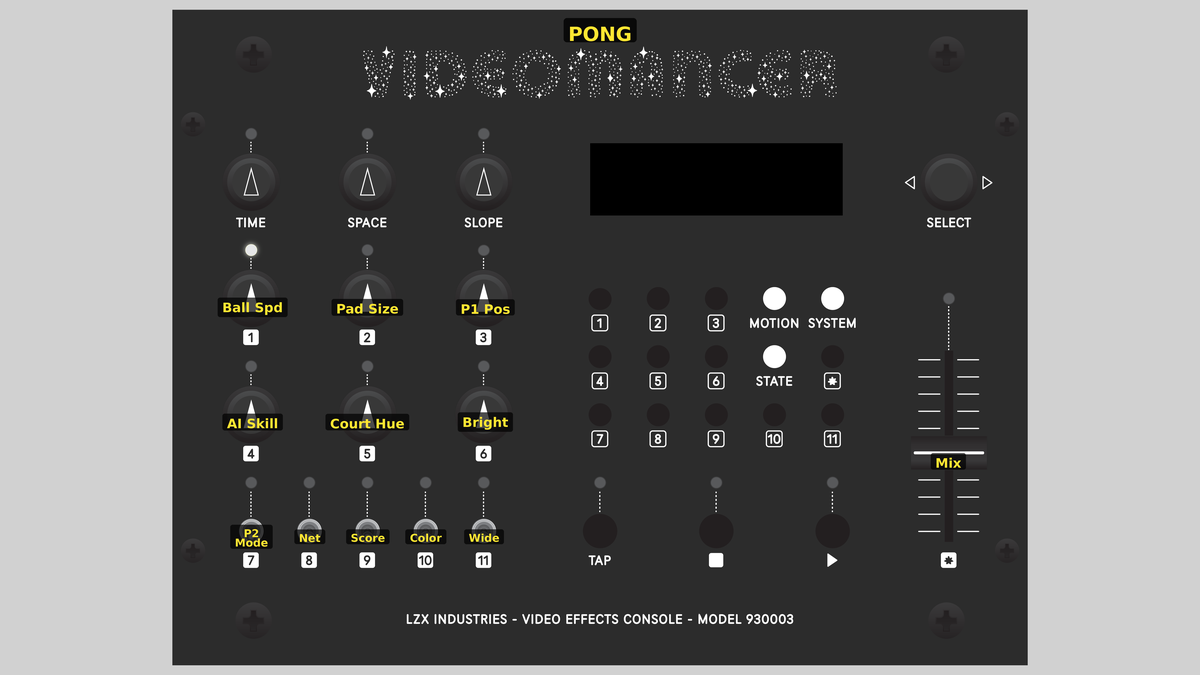 Videomancer's front panel with Pong active. Knobs 1–6 (top two rows of left cluster), Toggle switches 7–11 (bottom row of left cluster), Fader 12 (right side).
Knob 1 — Ball Spd
| Property | Value |
|---|---|
| Range | 0% – 100% |
| Default | 38% |
Ball Spd sets the ball's travel speed in pixels per frame. At 0%, the ball crawls across the court at 2 pixels per frame. At 100%, it rockets at 9 pixels per frame. The speed pot applies immediately: even mid-rally: so you can ramp up the difficulty on the fly. The default sits at a moderate pace suitable for casual play.
Because the ball moves a fixed number of pixels per vsync interval, the apparent speed scales with the video standard's frame rate. The ball moves faster at 60 fps than at 50 fps.
Knob 2 — Pad Size
| Property | Value |
|---|---|
| Range | 0% – 100% |
| Default | 50% |
Pad Size controls the height of both paddles simultaneously. At 0%, paddles are small (40 pixels tall): a narrow target that demands precision. At 100%, paddles grow to 295 pixels, covering a large portion of the screen and making the game much more forgiving. The default is a balanced mid-size.
Knob 3 — P1 Pos
| Property | Value |
|---|---|
| Range | 0% – 100% |
| Default | 50% |
P1 Pos directly controls Player 1's paddle position. Fully counterclockwise places the paddle at the top of the court; fully clockwise moves it to the bottom. The paddle tracks the knob position instantly with no smoothing, giving you immediate, tactile control.
Knob 4 — AI Skill
| Property | Value |
|---|---|
| Range | 0% – 100% |
| Default | 50% |
AI Skill adjusts how quickly the AI opponent tracks the ball. At 0%, the AI moves its paddle by only 1 pixel per frame: sluggish, easily beaten. At 100%, it tracks at 8 pixels per frame, making it nearly impossible to score against. At moderate settings, the AI creates a satisfying rally before occasionally letting a ball slip past.
Knob 5 — Court Hue
| Property | Value |
|---|---|
| Range | 0% – 100% |
| Default | 50% |
Court Hue selects the color of foreground objects (ball, paddles, score digits) when Color mode (Switch 10) is set to Hue. The knob sweeps through the color wheel by driving the U and V chroma channels in opposition. In Mono mode, this control has no visible effect.
Knob 6 — Bright
| Property | Value |
|---|---|
| Range | 0% – 100% |
| Default | 75% |
Bright sets the luminance of foreground objects. At 0%, the ball, paddles, and score are black: invisible against the court. At 100%, they are maximum white. The net renders at half this brightness, and the border at one quarter, maintaining visual hierarchy regardless of the setting.
Turn Bright down to create a ghostly, barely visible court. Combine with a colorful input video on the Mix fader for a subtle overlay effect.
Switch 7 — P2 Mode
| Property | Value |
|---|---|
| Off | AI |
| On | Manual |
| Default | AI |
P2 Mode selects between AI and manual control for Player 2. In the AI position, the computer tracks the ball automatically using the speed set by AI Skill (Knob 4), and the Mix fader (Fader 12) acts as a wet/dry mix control. In the Manual position, the fader controls Player 2's paddle position directly, and the mix is locked to fully wet.
Switch 8 — Net
| Property | Value |
|---|---|
| Off | Off |
| On | On |
| Default | On |
Net toggles the dashed center line on or off. When On, a vertical dashed line divides the court into two halves: the classic Pong aesthetic. When Off, the center line disappears, leaving a clean open court. The net is purely cosmetic and has no effect on gameplay.
Switch 9 — Score
| Property | Value |
|---|---|
| Off | Off |
| On | On |
| Default | On |
Score toggles the dot-matrix score display on or off. When On, each player's score appears as a 5×7 pixel digit rendered at 4× scale near the top of the screen. When Off, the digits disappear. Scores continue to track internally even when the display is hidden.
Switch 10 — Color
| Property | Value |
|---|---|
| Off | Mono |
| On | Hue |
| Default | Mono |
Color switches between monochrome and colored rendering. In the Mono position, all foreground objects are neutral white (or gray, depending on Bright). In the Hue position, the Court Hue knob (Knob 5) tints the ball, paddles, and score digits with a selectable color. The net and border always remain neutral.
Switch 11 — Wide
| Property | Value |
|---|---|
| Off | Off |
| On | On |
| Default | Off |
Wide doubles the base paddle height, resulting in paddles ranging from 80 to 591 pixels tall. This is an accessibility feature: flip it on for a more relaxed, forgiving game. Combined with a large Pad Size value, Wide mode can make paddles tall enough to cover half the screen.
Fader 12 — Mix
| Property | Value |
|---|---|
| Range | 0.0% – 100.0% |
| Default | 100.0% |
Mix serves a dual purpose depending on P2 Mode (Switch 7). In AI mode, the fader blends between the pass-through input video (fully down) and the synthesized Pong court (fully up). At intermediate positions, the court overlays the input as a semi-transparent layer. In Manual mode, the fader controls Player 2's paddle position instead, and the output is always fully wet.
Switching P2 Mode to Manual overrides the mix function. If you want to blend the court with an input signal while playing two-player, you'll need to route the mix externally.
Background
The Original Pong
The original Pong arcade machine, released by Atari in 1972, was built without a microprocessor. Its entire game logic: ball movement, paddle tracking, scoring, and video generation: was implemented in discrete TTL integrated circuits: counters, comparators, flip-flops, and gates. Videomancer's FPGA implementation echoes that approach. The game runs as a hardware state machine clocked at the video pixel rate, with no CPU, no software, and no frame buffer. Every pixel is computed on the fly as the raster scans across the screen.
Physics Engine
The ball physics update runs once per frame, triggered by the vsync pulse. An 8-phase pipelined finite state machine spreads the computation across eight clock cycles to avoid long combinational paths:
- Register inputs and compute new ball position
- Check wall bounces (top and bottom borders)
- Detect Player 1 paddle collision
- Compute bounce angle from P1 hit position
- Detect Player 2 paddle collision
- Compute bounce angle from P2 hit position
- Check for scoring (ball exits left or right)
- Commit all results to game state
The bounce angle is determined by where the ball strikes the paddle. A hit near the center returns nearly flat (vertical velocity ≈ 0). Hits near the edges produce steep angles (vertical velocity ±4): the classic Pong dynamic where skilled players can aim their returns.
Signal Flow
Signal Flow Notes
The architecture splits cleanly into two domains. The game state domain runs once per frame at vsync, computing ball position, paddle positions, collision detection, and scores. The rendering domain runs every pixel clock, testing each pixel coordinate against the game state to determine its color.
The rendering pipeline is fully pipelined at 5 stages, with every comparison broken into individual registered flags in Stage 2 before being combined in Stage 3. This avoids long combinational chains and ensures the design meets timing at 74.25 MHz.
The resolution is auto-measured from the incoming timing signals rather than hard-coded. This means Pong adapts correctly to any video standard and clock division factor (the court geometry scales proportionally.)
Exercises
These exercises explore Pong's gameplay and synthesis capabilities, from basic play to creative video overlay techniques.
Exercise 1: Your First Rally
Your First Rally — simulated result across source images.
Exercise Illustration
A description of the exercise illustration.
Learning Outcomes
Learn the basic controls and play a game against the AI.
Key Concepts
- Paddle position is directly controlled by the knob
- Ball speed affects difficulty
- AI skill determines how beatable the opponent is
Steps
- Default setup: Ensure P2 Mode (Switch 7) is set to AI and all other toggles are at defaults.
- Set ball speed: Turn Ball Spd (Knob 1) to about 40%. The ball should move at a moderate pace.
- Easy opponent: Set AI Skill (Knob 4) to about 30% (a beatable opponent.)
- Play the ball: Use P1 Pos (Knob 3) to move your paddle. Try to intercept the ball before it passes. Notice how the bounce angle changes depending on where the ball hits your paddle.
- Full match: Play until the score resets (one player reaches 9). Gradually increase AI Skill to challenge yourself.
Settings
| Control | Value |
|---|---|
| Ball Spd | ~40% |
| Pad Size | 50% |
| P1 Pos | (player controlled) |
| AI Skill | ~30% |
| Court Hue | 50% |
| Bright | 75% |
| P2 Mode | AI |
| Net | On |
| Score | On |
| Color | Mono |
| Wide | Off |
| Mix | 100% |
Exercise 2: Neon Overlay
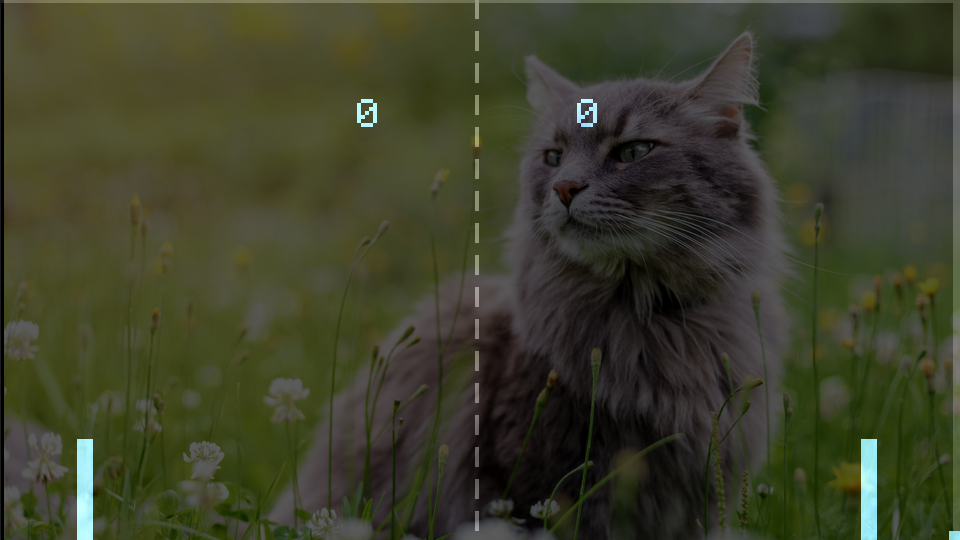 Neon Overlay — simulated result across source images.
Exercise Illustration
A description of the exercise illustration.
Learning Outcomes
Blend the Pong court with input video to create a colorful overlay effect.
Key Concepts
- The Mix fader blends synthesized graphics with pass-through video
- Color mode tints game objects with a selectable hue
- Brightness and mix interact to control overlay visibility
Steps
- Connect video: Feed a video source into Videomancer's input.
- Choose court hue: Flip Color (Switch 10) to Hue and set Court Hue (Knob 5) to taste (a warm orange or cool blue works well.)
- Boost brightness: Set Bright (Knob 6) to about 90% for vivid game objects.
- Blend overlay: Pull the Mix fader (Fader 12) down to about 60%. The Pong court should overlay your input video as a semi-transparent layer.
- Clean the display: Disable Net (Switch 8) and Score (Switch 9) for a cleaner overlay, or leave them on for the full retro aesthetic.
- Play over video: Play the game while watching the ball and paddles float over your video source.
Settings
| Control | Value |
|---|---|
| Ball Spd | ~40% |
| Pad Size | ~30% |
| P1 Pos | (player controlled) |
| AI Skill | ~60% |
| Court Hue | ~70% |
| Bright | ~90% |
| P2 Mode | AI |
| Net | Off |
| Score | Off |
| Color | Hue |
| Wide | Off |
| Mix | ~60% |
Exercise 3: Two-Player Battle
Two-Player Battle — simulated result across source images.
Exercise Illustration
A description of the exercise illustration.
Learning Outcomes
Set up a competitive two-player game using the knob and fader.
Key Concepts
- Manual P2 mode repurposes the fader as a paddle controller
- Wide mode and paddle size create accessibility options
- The fader's dual role changes depending on P2 Mode
Steps
- Enable two players: Flip P2 Mode (Switch 7) to Manual. The fader now controls Player 2's paddle.
- Adjust paddle size: Set Pad Size (Knob 2) to about 40% for a balanced challenge. If one player is less experienced, flip Wide (Switch 11) to On for larger paddles.
- Set ball speed: Set Ball Spd (Knob 1) to about 50%.
- Start the match: Player 1 uses P1 Pos (Knob 3); Player 2 uses the Mix fader (Fader 12). Play to 9!
- Increase difficulty: After a few rounds, increase Ball Spd gradually. Notice how the faster ball makes paddle positioning and angle control more critical.
Settings
| Control | Value |
|---|---|
| Ball Spd | ~50% |
| Pad Size | ~40% |
| P1 Pos | (Player 1) |
| AI Skill | 50% |
| Court Hue | 50% |
| Bright | 75% |
| P2 Mode | Manual |
| Net | On |
| Score | On |
| Color | Mono |
| Wide | Off |
| Mix | (Player 2) |
Glossary
-
Dot-Matrix: A method of rendering characters as patterns of individual dots on a grid, used here for the score display (5×7 pixels at 4× scale).
-
Frame Rate: The number of complete video frames displayed per second; Pong's physics update runs once per frame, so ball speed is frame-rate dependent.
-
Interpolator: A blending stage that mixes two signals by a variable amount, used here for the wet/dry mix between synthesized court and input video.
-
LFSR: Linear Feedback Shift Register; a hardware circuit that generates pseudo-random sequences, not used directly in Pong but common in other Videomancer programs.
-
Raster: The left-to-right, top-to-bottom scanning pattern used to draw each frame of video; Pong's rendering pipeline tests each pixel as the raster sweeps across the screen.
-
Synthesis: Generating video imagery from scratch, as opposed to processing an existing signal; Pong creates its court, ball, and paddles without any input video.
-
TTL: Transistor-Transistor Logic; the family of discrete digital integrated circuits used to build the original 1972 Pong arcade machine.
-
Vsync: Vertical synchronization pulse marking the start of each new video frame; Pong uses this signal to trigger its once-per-frame physics update.