Pinwheel
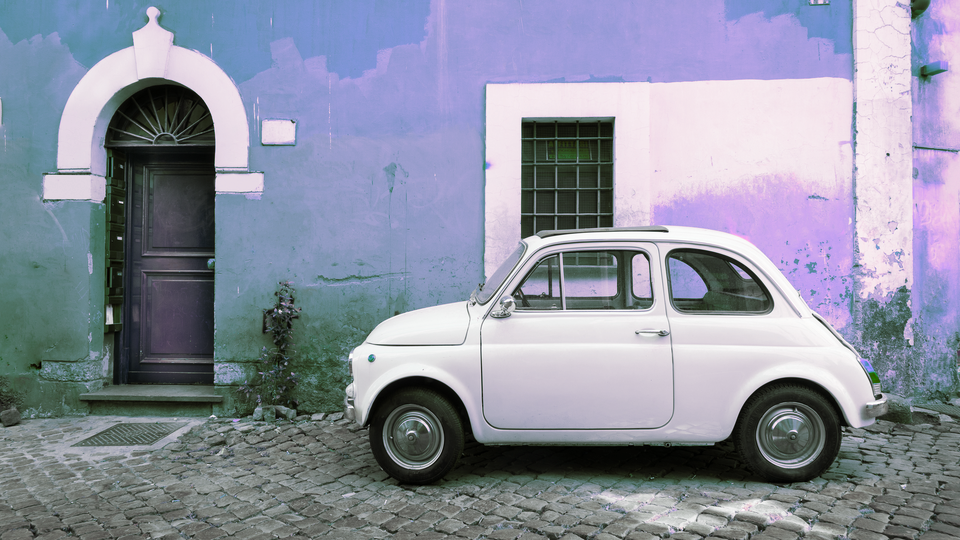 Pinwheel remapping a portrait's color spectrum through luminance-driven hue rotation, spinning warm tones into cool and back again.
Overview
Pinwheel is a color transformation program that rotates the hue of each pixel based on its brightness. At its heart is a true vector rotation in the UV color plane, performed per pixel in real time using a hardware sine/cosine lookup table and a 2×2 matrix multiplier. The rotation angle is computed from a combination of a fixed hue offset and a luminance-dependent modulation term. The result is a "color pinwheel": brighter and darker parts of the image spin to different positions on the color wheel, creating vivid, content-adaptive color remapping.
Beyond hue rotation, Pinwheel includes saturation and brightness controls, a colorize mode that replaces the input color with pure hue-shifted tone, and a bit-level crush stage that can posterize or glitch the output. These layers combine to produce effects ranging from subtle color grading to aggressive digital color destruction.
The signature effect is luminance-driven hue rotation. Turn up Luma to Hue (Knob 4): different brightness regions of the image shift to entirely different colors. This is what makes Pinwheel unique: it's not a uniform color shift, it's a content-adaptive one.
What's In a Name?
A pinwheel is a toy that spins in the wind, its vanes cycling through colors as they rotate. The name captures Pinwheel's core behavior: the color wheel spins at different speeds for different brightness levels, so the image's tonal range fans out across the spectrum like the blades of a pinwheel.
Quick Start
- Turn Hue (Knob 1) slowly from left to right. The entire image shifts through the color spectrum: reds become greens, greens become blues, and so on. This is a uniform hue rotation.
- Now increase Luma to Hue (Knob 4) to about 75%. Bright and dark areas of the image now have different hues. The image's tonal range fans out across the color wheel.
- Increase Saturation (Knob 2) past halfway. Colors become more vivid as the chroma scaling boosts the UV components after rotation.
- Toggle Colorize (Switch 7) to On. The input color is stripped away, and pure hue-rotated tone is applied. The image becomes a monochrome-to-color map, with brightness determining the hue.
Parameters
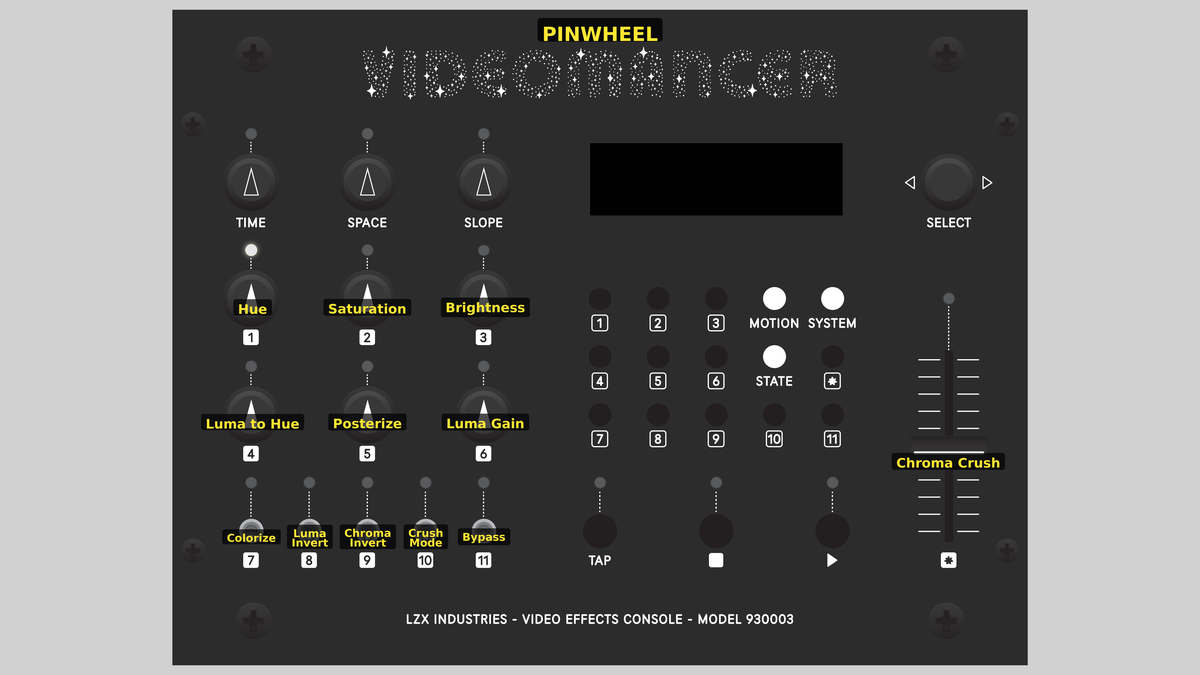 Videomancer's front panel with Pinwheel active. Knobs 1–6 (top two rows of left cluster), Toggle switches 7–11 (bottom row of left cluster), Fader 12 (right side).
Knob 1 — Hue
| Property | Value |
|---|---|
| Range | 0.0% – 200.0% |
| Default | 100.1% |
Hue sets the base rotation angle applied to all pixels in the UV color plane. At 0%, the hue offset is minimal. At 100%, the angle sweeps through two full rotations of the color wheel (0 to 200%). The midpoint, 100%, corresponds to a full 360° rotation: meaning the colors return to their original positions. Values below 100% apply a partial rotation; values above 100% continue past a full revolution.
This parameter acts as the "starting position" of the pinwheel. Luma to Hue (Knob 4) then adds a brightness-dependent offset on top of this base angle.
Knob 2 — Saturation
| Property | Value |
|---|---|
| Range | 0.0% – 100.0% |
| Default | 50.0% |
Saturation scales the color intensity of the rotated UV signal. The proc amp stage applies a contrast adjustment centered at neutral gray (512). At 0%, chroma is fully attenuated: the rotated colors collapse to gray. At 50%, the original chroma amplitude is preserved. At 100%, the chroma is boosted to twice its original intensity, pushing colors toward full saturation.
Use Saturation in combination with Colorize (Switch 7) to control the intensity of the synthetic hue-mapped effect. With Colorize on, the Saturation knob determines how vivid the brightness-to-color conversion becomes.
Knob 3 — Brightness
| Property | Value |
|---|---|
| Range | 0.0% – 100.0% |
| Default | 50.0% |
Brightness shifts the luminance level of the output. The proc amp stage adds a fixed offset to the scaled luma value. At 0%, brightness is reduced to its minimum. At 50%, the original brightness level is preserved. At 100%, the image is pushed toward peak white.
Brightness is applied after the luma gain stage, so it offsets the overall level of the contrast-adjusted result.
Knob 4 — Luma to Hue
| Property | Value |
|---|---|
| Range | 0.0% – 100.0% |
| Default | 50.0% |
Luma to Hue controls how much the input brightness modulates the hue rotation angle. At 0%, all pixels receive the same hue rotation determined solely by the Hue knob. As this control increases, brighter pixels receive a larger angular offset, spreading the image's tonal range across the color wheel. At 100%, the full 10-bit range of the luminance signal contributes to the rotation angle.
This is Pinwheel's signature parameter. It creates the content-adaptive color mapping that gives Pinwheel its name.
The rotation angle is computed by a proc amp as: angle = Y × luma_to_hue + hue. This means Luma to Hue acts as a contrast (gain) on the luminance, and Hue acts as the brightness (offset). Their interaction determines the total angular range.
Knob 5 — Posterize
| Property | Value |
|---|---|
| Range | 0.0% – 100.0% |
| Default | 100.0% |
Posterize applies a bit-level mask to the luminance channel at the output stage. The 10-bit mask value is bitwise-ANDed (in Clean mode) or XORed (in Glitch mode) with the processed Y value. At 100%, the mask is all ones (0x3FF), and luminance passes through unchanged. As the value decreases, more of the lower bits are zeroed or scrambled, reducing the number of distinct brightness levels. At 0%, nearly all bits are masked, reducing the image to stark tonal bands.
Despite the name "Posterize," this control operates at the bit level, not by quantization. The visual result is similar to traditional posterization at moderate settings, but extreme settings produce staircase-like artifacts specific to bitwise masking.
Knob 6 — Luma Gain
| Property | Value |
|---|---|
| Range | 0.0% – 100.0% |
| Default | 50.0% |
Luma Gain controls the contrast of the luminance channel. The proc amp stage multiplies the input Y value by a gain factor derived from this parameter. At 0%, the gain is zero: luminance collapses to the Brightness offset alone. At 50%, the original contrast is preserved. At 100%, double gain is applied, stretching the tonal range and clipping highlights and shadows.
Switch 7 — Colorize
| Property | Value |
|---|---|
| Off | Off |
| On | On |
| Default | Off |
Colorize replaces the input chroma (U and V) with neutral gray (512) before hue rotation. With Colorize off, the original color information passes through the rotation stage, resulting in a shifted version of the original palette. With Colorize on, chroma starts at zero, and the hue rotation applies pure calculated color based solely on the luminance-derived angle. The result is a false-color effect where brightness determines hue.
Switch 8 — Luma Invert
| Property | Value |
|---|---|
| Off | Off |
| On | On |
| Default | Off |
Luma Invert applies a bitwise complement to the luminance channel before the bit-crush stage. When combined with the Posterize mask in Clean mode, inversion flips the tonal range of the crushed output. In Glitch mode, the interaction between inversion and XOR produces different scrambled patterns than either effect alone.
Switch 9 — Chroma Invert
| Property | Value |
|---|---|
| Off | Off |
| On | On |
| Default | Off |
Chroma Invert applies a bitwise complement to the U and V channels before the bit-crush stage. The effect is a reversal of the color spectrum in the crushed output. In Clean mode, inverted chroma is ANDed with the Chroma Crush mask; in Glitch mode, it is XORed.
Switch 10 — Crush Mode
| Property | Value |
|---|---|
| Off | Clean |
| On | Glitch |
| Default | Clean |
Crush Mode selects between two bitwise operations used for the crush stages. In Clean mode, the processed values are bitwise-ANDed with their respective crush masks (Posterize for Y, Chroma Crush for UV). AND masking zeros out bits, producing smooth posterization-like reduction. In Glitch mode, the operation switches to bitwise XOR, which scrambles values in unpredictable ways. XOR does not simply reduce information: it remaps values chaotically, creating digital artifacts and color inversions.
Toggle Crush Mode while slowly sweeping the Posterize or Chroma Crush controls to hear the visual "texture" change. Clean mode produces orderly banding; Glitch mode fragments the image into digital noise and false color.
Switch 11 — Bypass
| Property | Value |
|---|---|
| Off | Off |
| On | On |
| Default | Off |
Bypass routes the unprocessed input signal directly to the output, bypassing all Pinwheel processing stages. A BRAM-based delay line stores the original pixels and replays them at the correct time, so there is no glitch when switching. Sync signals always pass through the main pipeline, ensuring stable timing. Use Bypass for instant A/B comparison.
Fader 12 — Chroma Crush
| Property | Value |
|---|---|
| Range | 0.0% – 100.0% |
| Default | 100.0% |
Chroma Crush applies a bit-level mask to both the U and V channels at the output stage, analogous to Posterize for the luminance channel. At 100%, the mask is all ones and color passes through intact. As the value decreases, color information is progressively destroyed. At 0%, chroma is reduced to near-neutral. In Clean mode, the mask operates via AND; in Glitch mode, via XOR.
Background
Hue rotation as vector math
Color in a YUV video signal is encoded as two components: U (blue-yellow axis) and V (red-cyan axis). Together these form a two-dimensional vector. The hue of a color is the angle of that vector, and the saturation is its length. Rotating the UV vector by some angle changes the hue while preserving the saturation (which is exactly what a 2×2 rotation matrix does.)
Pinwheel implements this rotation in hardware using a BRAM-based sine/cosine lookup table with 1024 entries and 10-bit precision. The lookup table feeds a differential 2×2 matrix multiplier that applies the classic rotation formula:
The entire rotation: lookup, multiply, and accumulate: completes in 14 clock cycles per pixel.
Luminance-driven modulation
The rotation angle is not fixed. A proc amp stage computes the angle from the input luminance: angle = Y × contrast + offset, where the contrast is the Luma to Hue parameter and the offset is the Hue parameter. This means brighter pixels rotate further around the color wheel than darker ones. The effect is a rainbow-like color spread that follows the tonal contours of the source image.
Because the angle computation uses a full 10-bit multiplier, the modulation is smooth and continuous: there are no quantization steps in the angular domain, even when the posterize controls reduce the output bit depth.
Bit-level crushing
The final output stage applies bitwise operations to the processed pixel data. In Clean mode, each channel's value is ANDed with a mask derived from the crush control, zeroing out lower-order bits and creating flat bands of uniform value: a digital equivalent of posterization. In Glitch mode, the AND is replaced with XOR, which does not reduce the number of distinct values but rather scrambles them. XOR flips bits according to the mask pattern, creating unpredictable value mapping that depends on both the input data and the mask setting.
The luma and chroma crush controls are independent, so Y can be posterized cleanly while UV is glitched, or vice versa. The Luma Invert and Chroma Invert toggles apply a bitwise NOT before the crush stage, changing which bits are affected by the mask.
Signal Flow
Signal Flow Notes
The pipeline is carefully aligned so that all three channels arrive at the output simultaneously after 36 clock cycles. The angle computation and luma processing both take 10 clocks through their respective proc amps, but the UV path then passes through the 14-clock chroma rotation and another 10-clock saturation scaling: a total of 34 clocks from input to processed UV. The Y path compensates with a 24-clock shift register after its 10-clock proc amp.
The chroma input is delayed by 10 clocks before entering the rotation stage, so the UV data and the computed angle arrive at the chroma_proc module simultaneously. This alignment is critical: without it, each pixel's color would be rotated by the angle computed from a different pixel's brightness.
The bypass path uses a BRAM-based circular buffer rather than a shift register, storing the full 30-bit YUV pixel and reading it back after 36 clocks. This ensures glitch-free switching between processed and bypassed output.
Exercises
These exercises explore Pinwheel's color transformation capabilities, progressing from simple hue shifts to complex crushed color textures.
Exercise 1: Color Wheel Sweep
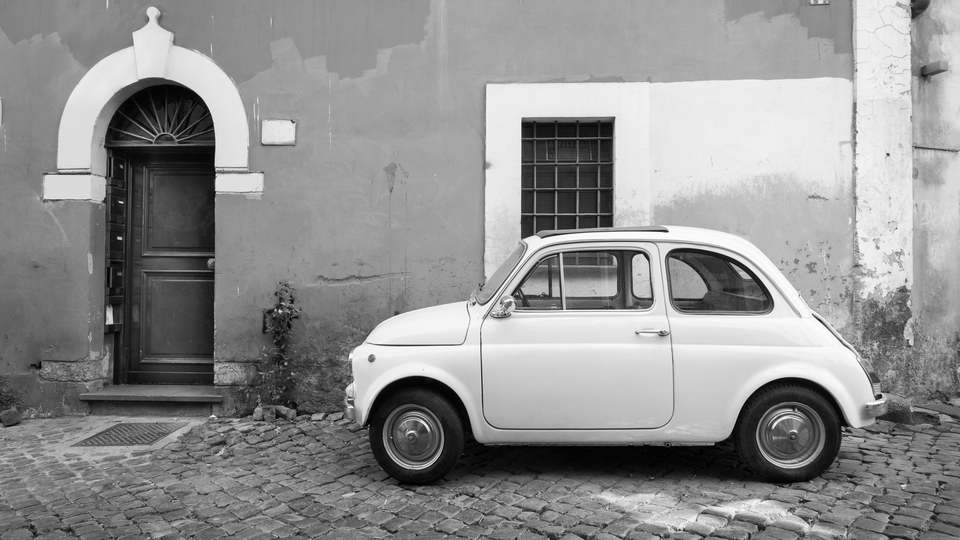 Color Wheel Sweep — simulated result across source images.
Exercise Illustration
A description of the exercise illustration.
Learning Outcomes
Understand uniform hue rotation and how the color wheel maps to the Hue parameter.
Key Concepts
- Hue rotation preserves saturation while changing color
- The Hue knob sweeps through two full revolutions (0 to 200%)
- At 100%, the rotation completes a full 360° cycle back to the original colors
Video Source
A color bar pattern or any footage with a range of distinct, saturated colors.
Steps
- Neutral starting point: Set all controls to their defaults (midpoint). Ensure Luma to Hue (Knob 4) is at 0% so there is no content-dependent modulation.
- Sweep the spectrum: Slowly sweep Hue (Knob 1) from left to right. The entire image's palette rotates through the spectrum. Reds become greens, greens become blues, blues become reds.
- Full revolution: Find the halfway point (~100%) where colors return to their original values after a full revolution.
- A/B comparison: Toggle Bypass (Switch 11) to compare the shifted and original colors side by side.
Settings
| Control | Value |
|---|---|
| Hue | Sweep 0 to 200% |
| Saturation | 50% |
| Brightness | 50% |
| Luma to Hue | 0% |
| Posterize | 100% |
| Luma Gain | 50% |
| Colorize | Off |
| Luma Invert | Off |
| Chroma Invert | Off |
| Crush Mode | Clean |
| Bypass | Off |
| Chroma Crush | 100% |
Exercise 2: Luminance Rainbow
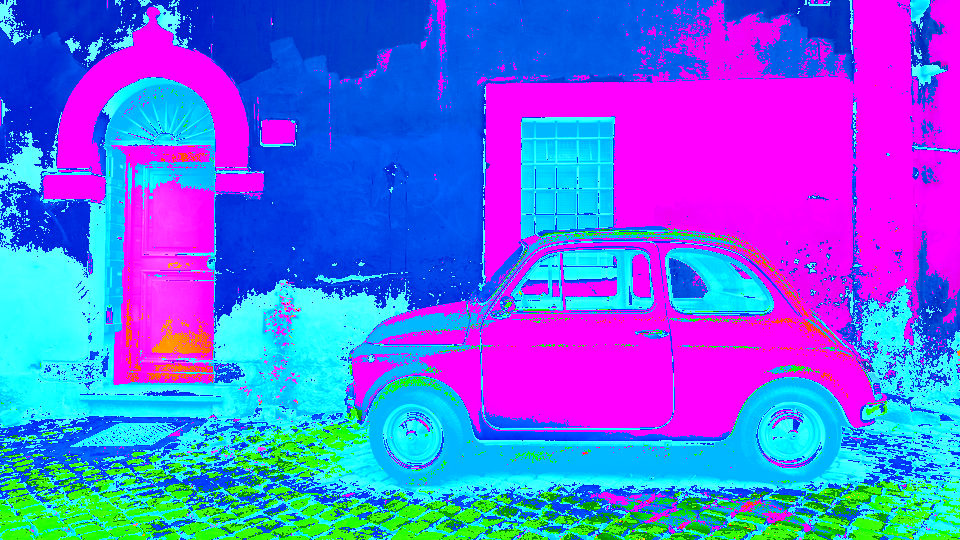 Luminance Rainbow — simulated result across source images.
Exercise Illustration
A description of the exercise illustration.
Learning Outcomes
Explore the signature luminance-to-hue modulation that spreads the tonal range across the color wheel.
Key Concepts
- Luma to Hue makes bright and dark regions rotate by different amounts
- Colorize mode converts the image to a pure luminance-to-color map
- Saturation controls the intensity of the mapped colors
Video Source
A high-contrast image with a smooth range of brightness values: a face lit from one side, a landscape with sky and shadows, or a gradient test pattern.
Steps
- Center the hue: Set Hue (Knob 1) to center (100%). Set Luma to Hue (Knob 4) to 0%. The image should appear with approximately normal colors.
- Fan into rainbow: Slowly increase Luma to Hue from 0% to 100%. The image's tonal range fans out into a rainbow: shadows take on one hue, midtones another, highlights a third.
- Strip original color: Toggle Colorize (Switch 7) to On. The original color is stripped away, leaving a pure brightness-to-hue map. Shadows, midtones, and highlights each glow with a distinct color.
- Adjust intensity: Adjust Saturation (Knob 2) to boost or soften the color intensity of the false-color mapping.
- Rotate the rainbow: Sweep Hue (Knob 1) while Colorize is on. The entire rainbow palette shifts around the wheel.
Settings
| Control | Value |
|---|---|
| Hue | 100% |
| Saturation | 60% |
| Brightness | 50% |
| Luma to Hue | 100% |
| Posterize | 100% |
| Luma Gain | 50% |
| Colorize | On |
| Luma Invert | Off |
| Chroma Invert | Off |
| Crush Mode | Clean |
| Bypass | Off |
| Chroma Crush | 100% |
Exercise 3: Crushed Color Glitch
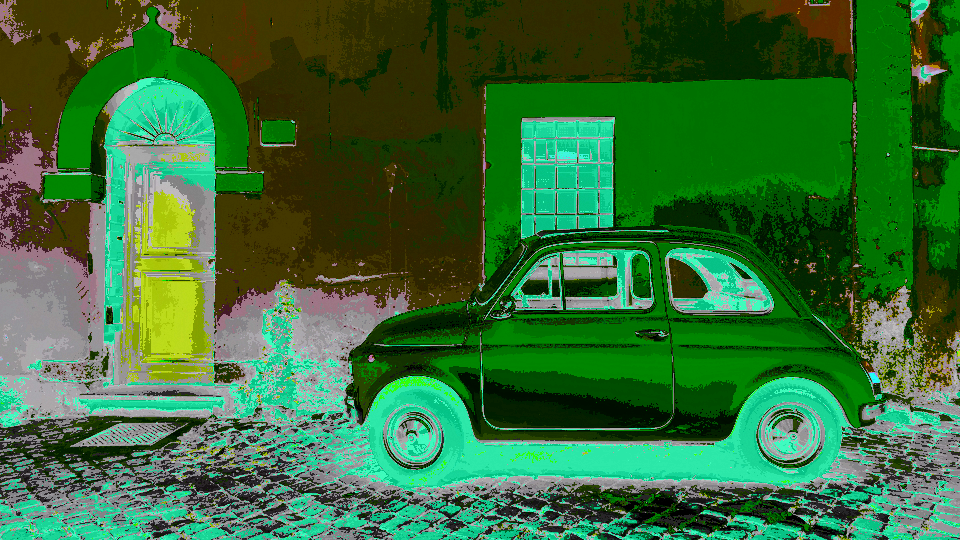 Crushed Color Glitch — simulated result across source images.
Exercise Illustration
A description of the exercise illustration.
Learning Outcomes
Combine hue rotation with bit-level crushing to create abstract digital color textures.
Key Concepts
- Bit-crushing reduces or scrambles color information at the bit level
- Glitch mode (XOR) creates unpredictable value mapping
- Luma and chroma crush are independent
Video Source
Any footage, especially material with a mix of bright and dark regions.
Steps
- Rainbow baseline: Start with Exercise 2's luminance rainbow settings (Luma to Hue at ~80%, Colorize on).
- Crush the luma: Reduce Posterize (Knob 5) to about 40%. The luminance collapses into visible banding (flat steps of brightness replace smooth gradients.)
- Reduce color depth: Reduce Chroma Crush (Fader 12) to about 50%. The vivid rainbow palette snaps to a reduced set of colors.
- Engage glitch mode: Toggle Crush Mode (Switch 10) to Glitch. The orderly banding explodes into chaotic digital texture as AND masking switches to XOR scrambling.
- Inversion combos: Toggle Luma Invert (Switch 8) and Chroma Invert (Switch 9) to see how inversion interacts with the XOR crush. Each combination produces a different scrambled palette.
- Explore destruction: Sweep Posterize and Chroma Crush slowly to explore the full range of digital destruction.
Settings
| Control | Value |
|---|---|
| Hue | 100% |
| Saturation | 60% |
| Brightness | 50% |
| Luma to Hue | 80% |
| Posterize | 40% |
| Luma Gain | 50% |
| Colorize | On |
| Luma Invert | Off |
| Chroma Invert | Off |
| Crush Mode | Glitch |
| Bypass | Off |
| Chroma Crush | 50% |
Glossary
-
Bit Crushing: Reducing the effective bit depth of a signal by masking or scrambling individual bits, producing banding or glitch artifacts.
-
Chroma: The color information in a YUV video signal, encoded as U (blue-yellow) and V (red-cyan) components.
-
Colorize: A mode that replaces input chroma with neutral gray, so hue rotation produces pure false color derived solely from luminance.
-
Hue: The angular position of a color on the color wheel, determined by the ratio of U and V components.
-
Hue Rotation: A transformation that shifts all colors around the color wheel by a fixed angle, preserving saturation.
-
Luma: The brightness component (Y) of a YUV video signal, representing perceived lightness.
-
Proc Amp: Processing Amplifier; a gain-and-offset stage that applies brightness and contrast adjustment to a signal.
-
Rotation Matrix: A 2×2 matrix using sine and cosine values that rotates a vector in a two-dimensional plane without changing its magnitude.
-
Saturation: The intensity or purity of a color; high saturation produces vivid color, zero saturation produces gray.
-
Vector Rotation: Rotating a two-component signal (here, U and V) around the origin using trigonometric functions, changing direction while preserving magnitude.