Chromagnon Simulator Downloads
· 3 min read

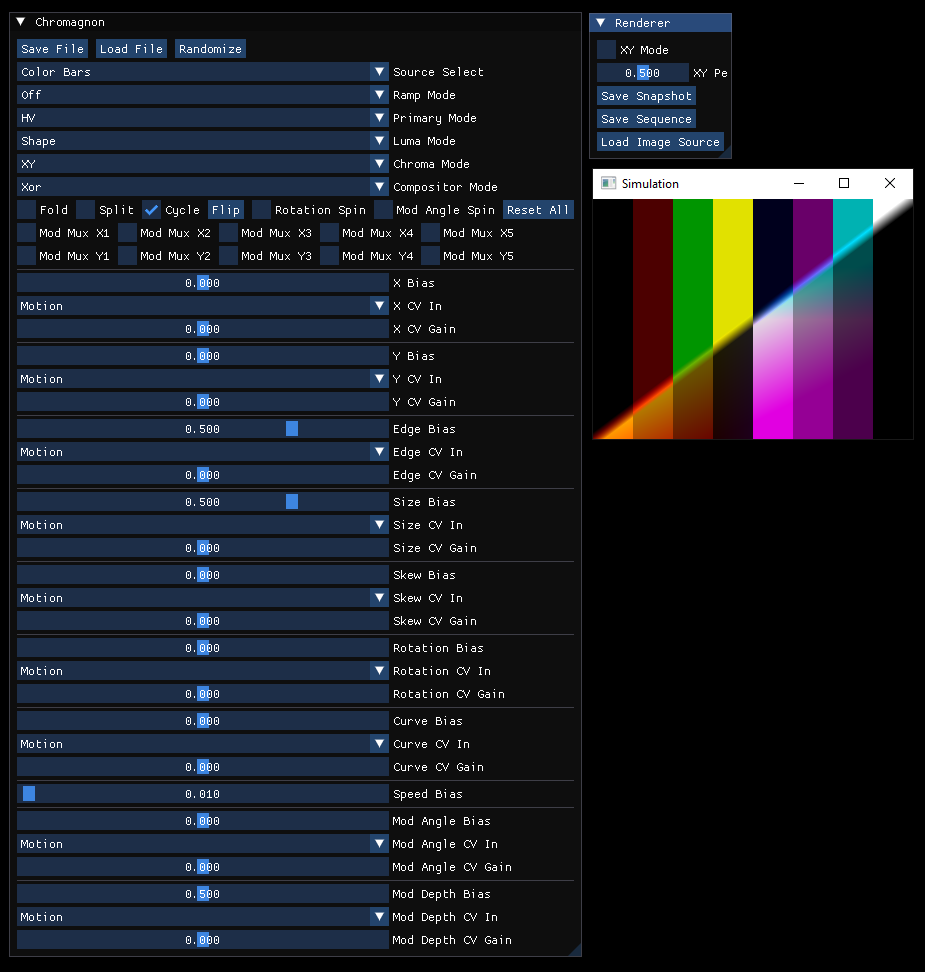
Hi everyone! As promised, I've made my Chromagnon Simulator application available for download. This was a tool created for design reference during development of the hardware, so it is not very polished or useful beyond getting a preview of the instrument's functionality -- which I hope you will enjoy! The MacOS build has some issues, but can be made to work with the installation instructions below.
Download Links
Windows Installation
Simply download the appropriate zip file for your platform, extract it, and run the application. No installation required - these are portable versions that run directly from the extracted folder.
MacOS Installation
There are some issues with the MacOS build, but our user Adam was able to get it to work.
- Download and extract “chromagnon-simulator-macos-portable.zip”
- Open up the extracted “Chromagnon Simulator-0.1.0 Darwin” folder
- Open up the “bin” folder
- Drag the “simulator-chromagnon.app” into your “Applications” folder
- Navigate to your “Applications” folder, right click “simulator-chromagnon.app”, and select “Show Package Contents”
- Open up the “Contents” folder
- Leave this folder open, and open up a separate file explorer window and navigate back to the original extracted “Chromagnon Simulator-0.1.0 Darwin” folder
- Right click the “simulator-chromagnon.app” and select “Show Package Contents”
- Open up the “Contents” folder
- Drag the “Frameworks” folder into the “Contents” folder opened up in step 6
- [Skip if you already have homebrew installed] Open Terminal and paste the following command to install homebrew then hit ENTER:
/bin/bash -c "$(curl -fsSL https://raw.githubusercontent.com/Homebrew/install/HEAD/install.sh)"
- When prompted, hit ENTER to continue the installation of homebrew
- In terminal enter the following command to install SMFL2.6 and hit ENTER:
brew install sfml@2
- In terminal enter the following command to remove MacOS security restrictions from the simulator app and hit ENTER:
sudo xattr -rd com.apple.quarantine /Applications/simulator-chromagnon.app
- In terminal, enter the following command to point the simulator to the correct library files and hit ENTER:
cd /Applications/simulator-chromagnon.app/Contents/Frameworks

rm libsfml-*.dylib

ln -s /opt/homebrew/opt/sfml@2/lib/libsfml-graphics.2.6.dylib libsfml-graphics.2.6.dylib

ln -s /opt/homebrew/opt/sfml@2/lib/libsfml-window.2.6.dylib libsfml-window.2.6.dylib

ln -s /opt/homebrew/opt/sfml@2/lib/libsfml-system.2.6.dylib libsfml-system.2.6.dylib

ln -s /opt/homebrew/opt/sfml@2/lib/libsfml-audio.2.6.dylib libsfml-audio.2.6.dylib

ln -s /opt/homebrew/opt/sfml@2/lib/libsfml-network.2.6.dylib libsfml-network.2.6.dylib
- You should now be able to navigate to your “Applications” folder and open “simulator-chromagnon.app” as normal